Phototo3d

Practical guide

Your photo to 3d tutorial step by step

This photo to 3d tutorial step by step starts with a single, well-lit subject and ends with a model you have inspected from multiple angles. Use the workflow as a guide, then check which image inputs and output options your chosen tool actually supports.

Check available inputs after opening
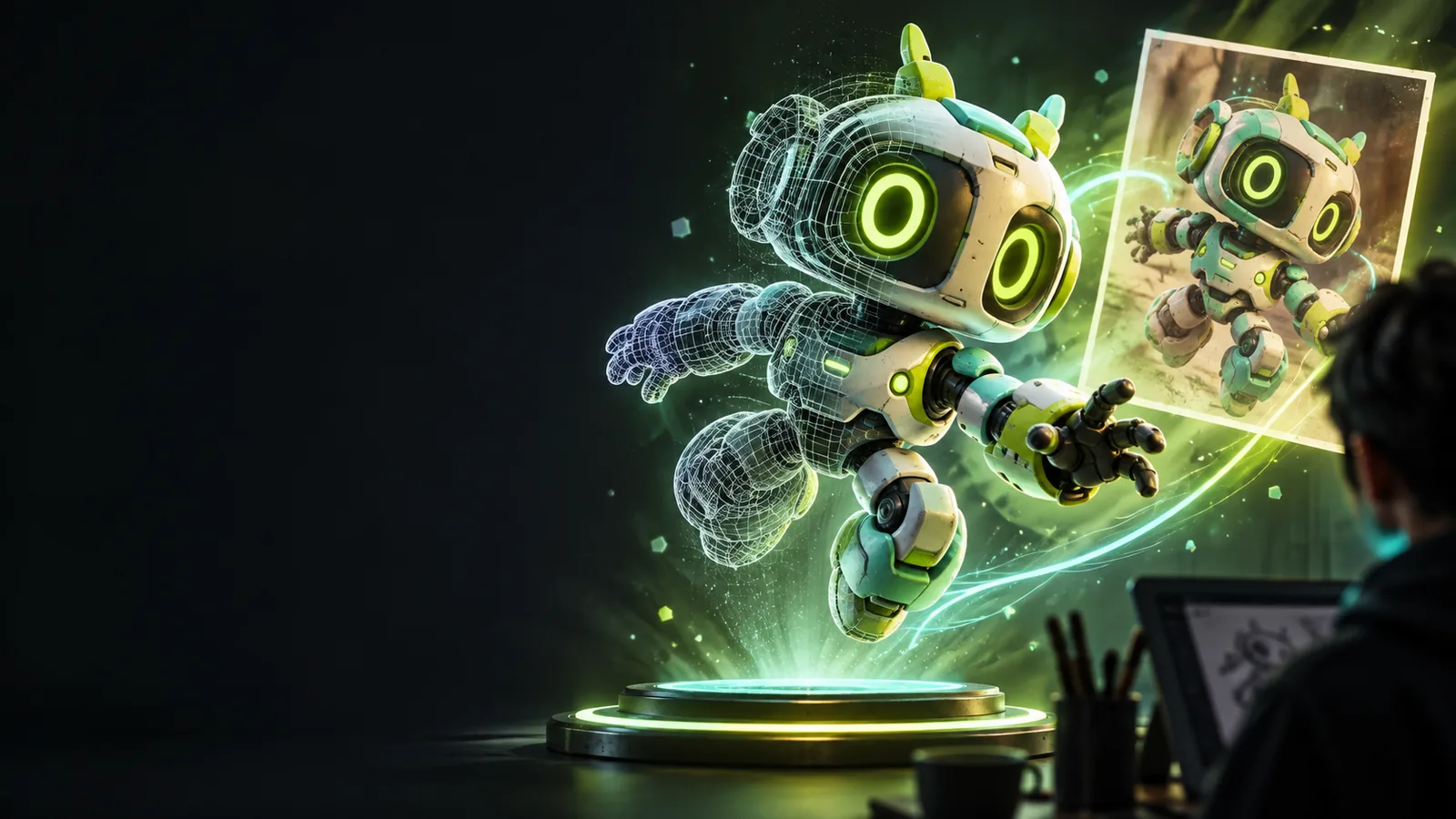
Phototo3d landing illustration showing a visual reference and a three-dimensional object

Prerequisites

Before starting photo to 3d work, gather a reference that shows the object's shape clearly and decide what you need the resulting model to do.

Numbered steps

Follow this photo to 3d tutorial step by step, but treat the first result as a draft rather than a finished asset.

  1. 1

    Choose and prepare the reference

    Pick one object with a visible silhouette, even lighting, and enough contrast against its background. Crop away unrelated objects without cutting off the subject. A three-quarter view often reveals more depth than a straight-on view, while a second photograph can help you identify features hidden in the first. Avoid strong reflections, heavy motion blur, and shadows that could be mistaken for parts of the object. Before beginning the photo to 3d process, note which details are essential: the overall outline, a flat base, a handle, or a distinctive surface pattern. If your chosen tool accepts images, check its input requirements there rather than assuming every workflow accepts the same file.

  2. 2

    Describe the shape you want

    Use the photo as a visual reference and add a short description of the physical object. State its material, major forms, and features that must remain separate. For example, describe a ceramic mug as a rounded vessel with an open top, a single loop handle, and a flat bottom. Say whether you want a realistic object or a stylized interpretation. In photo to 3d generation, a precise description can clarify an ambiguous image, but it cannot reveal an unseen back surface. If the available workflow accepts text rather than an image, describe the reference instead of assuming that attaching the photograph is possible.

  3. 3

    Inspect, revise, and prepare

    Rotate the result and compare its front, sides, back, and underside with your intended object. Look for doubled handles, fused gaps, uneven symmetry, floating pieces, and texture details that have become geometry. Revise the description or try a clearer reference if the main shape is wrong; small cosmetic changes rarely repair a badly inferred silhouette. Save any usable result according to the options offered by the tool. For illustration or concept work, the visual appearance may be enough. For printing or use in another 3D application, inspect the mesh and confirm that the available export format fits your next step.

Common errors and fixes

The most useful photo to 3d checks depend on what you intend to make. These situations show where to look first and what to change.

First-time creator

The model's outline looks unlike the photograph because the subject blends into a busy background or is cropped too tightly. Start again with a cleaner image that shows the entire object. If the tool has no image input, describe the missing shape explicitly.

A clearer reference makes it easier to judge whether the generated form matches the intended object. For an overview of browser-based workflows, read the linked guide.

photo to 3d online

Character designer

The front view looks convincing, but the back has invented markings or an unexpected shape. A single photograph cannot establish unseen surfaces. Supply another view where the workflow permits it, or write down the back-view details you want before revising.

The result becomes a more deliberate interpretation rather than an assumed reconstruction. Compare other subject types and reference angles in the linked examples.

photo to 3d examples online

Print maker

A model looks complete on screen but has a thin wall, an open underside, or disconnected pieces. Visual inspection alone does not establish that a mesh is printable. Check it in appropriate modeling and slicing software before committing to fabrication.

You can identify repairs needed for a solid, usable object instead of treating an attractive preview as print-ready. The linked printing guide covers that separate preparation stage.

convert image to 3d model for printing

Advanced tips

Make each revision answer one question

For more controlled photo to 3d results, change one thing at a time: the reference angle, the description of a feature, or the intended style. Keep the best previous result so you can tell whether a revision actually helped. When shape matters more than surface detail, inspect an untextured view if your workflow provides one. When texture matters, check whether a dark patch in the image has been interpreted as color rather than a dent. These habits make the tutorial useful even when your first attempt needs several revisions. Open the available creation workflow to see which inputs and controls it offers.

Create 3D model
  • Prioritize silhouette before surface detail
  • Check unseen sides instead of assuming accuracy
  • Verify downstream requirements separately

Tutorial FAQ

Start with a clear, complete image of one subject and identify its main shapes. Then use a workflow that supports your intended input, describe ambiguous features, and inspect the resulting model from more than the original camera angle. This tutorial treats the first generation as something to review and revise.

No. A single image shows only visible surfaces, so the back and underside must be inferred or specified separately. If another view is available, use it to check what the first photo leaves unclear; whether you can submit multiple images depends on the tool.

Choose a sharp, evenly lit image with one distinct subject and an unobstructed outline. A three-quarter view can expose useful depth cues, provided important parts are not hidden. Reflective surfaces, clutter, and deep shadows make shape harder to interpret.

The front may closely follow the visible reference while the back is an estimated continuation of the shape. Rotate the model to find the specific mismatch, then clarify that feature in your description or use another reference view where supported. Do not assume a plausible back is a faithful reconstruction.

Not necessarily. A visual result may still have open surfaces, disconnected parts, or details too thin to print reliably. Check the geometry, dimensions, and export options in appropriate software before preparing a print.

Create a 3D model
Create a 3D model