Phototo3d

Printable 3D workflow

Convert image to 3d model for printing with confidence

Convert image to 3d model for printing by starting with a clear reference, checking the generated mesh, and preparing the result for your slicer. Phototo3d helps you move from visual idea to a model you can inspect before fabrication.

Review mesh before slicing
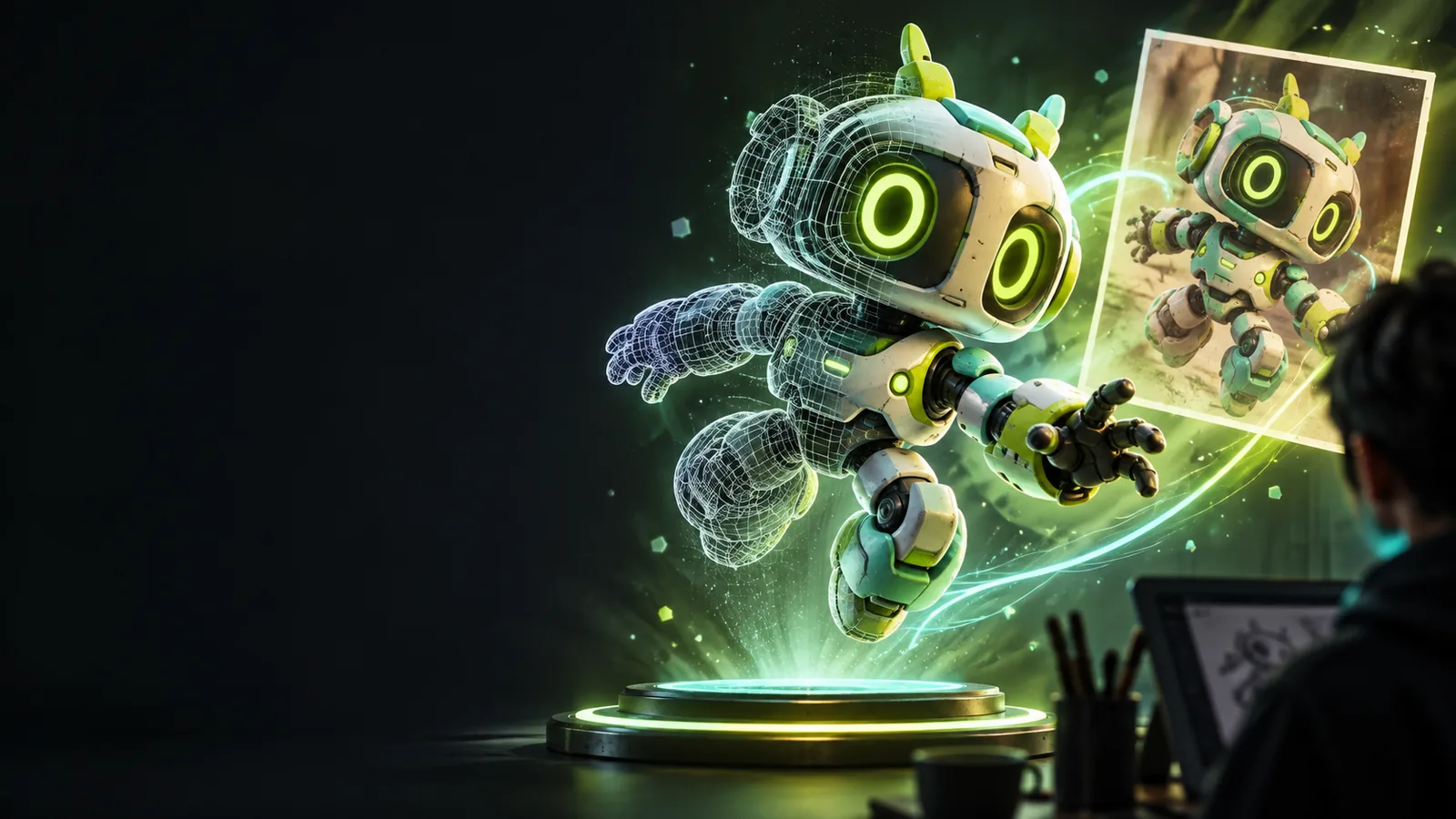
Stylized 3D model preview for an image-based workflow

Know the limits

Who needs a printable image-to-model workflow?

This route suits makers, designers, educators, and hobbyists who can review a mesh before printing. It does not replace slicer checks or mechanical CAD for precision parts.

Not a dimensionally exact scanner

A single image rarely reveals hidden surfaces, true depth, or exact measurements. The model may look right from one angle while the back or underside needs work.

Workaround

Use a reference with clear shape cues, then inspect every side and set important dimensions in your 3D editor.
Not a finished slicer project

The generated object is not automatically positioned, supported, oriented, or optimized for a specific printer and material.

Workaround

Open the mesh in a slicer such as Cura or PrusaSlicer, confirm scale, add supports where needed, and preview each layer.

Not ideal for tiny surface details

Thin text, hair, sharp ridges, and delicate accessories can merge or disappear when converted into printable geometry.

Workaround

Thicken fragile features and simplify small details before exporting the final print file.

Not a substitute for mechanical CAD

Interlocking parts, threads, holes, and load-bearing components need controlled tolerances that image-based generation may not preserve.

Workaround

Use the generated model as a visual starting point, then rebuild critical features in Blender or a CAD tool.

Tool workflow

Use the image-to-model tool

A clean input and a short review loop give you a better starting mesh than sending an unclear reference straight to a slicer.

  1. 1

    Prepare the reference

    Choose a well-lit image with the subject separated from its background. Crop away distractions and make the silhouette easy to read.

  2. 2

    Generate the model

    Describe the object, its intended scale or use, and any features that must remain visible. Treat the first result as a draft, not a final print.

  3. 3

    Inspect before export

    Rotate the mesh, check the base and underside, look for gaps or paper-thin areas, then make corrections before opening the file in a slicer.

Related paths

Choose the right 3D printing path

These nearby guides cover different starting inputs and workflows, so you can choose the route that matches your project.

Visual check

Compare the source image and model

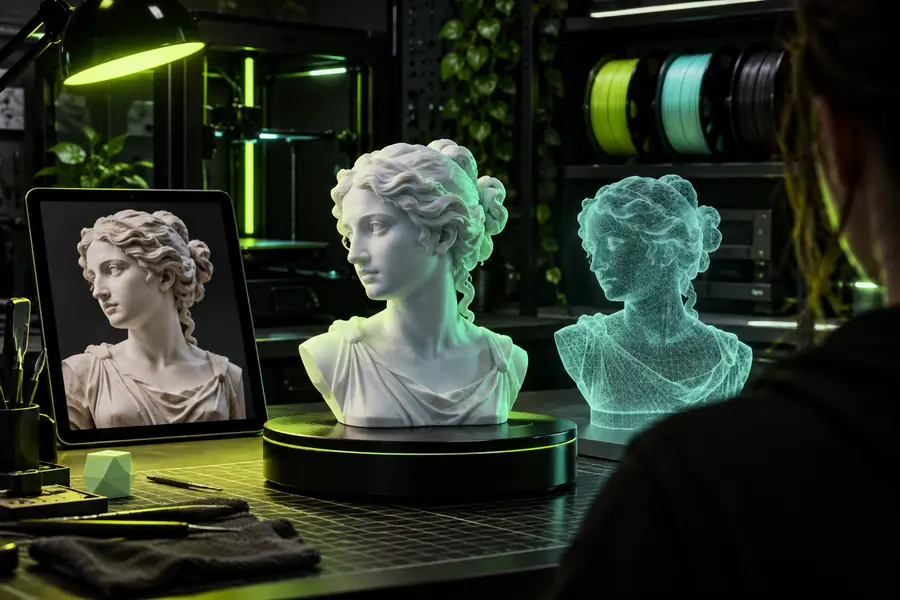
A before-and-after check helps reveal whether the mesh preserves the silhouette, major proportions, and details that matter for the intended print.

Reference image prepared for image-based 3D conversion Source image
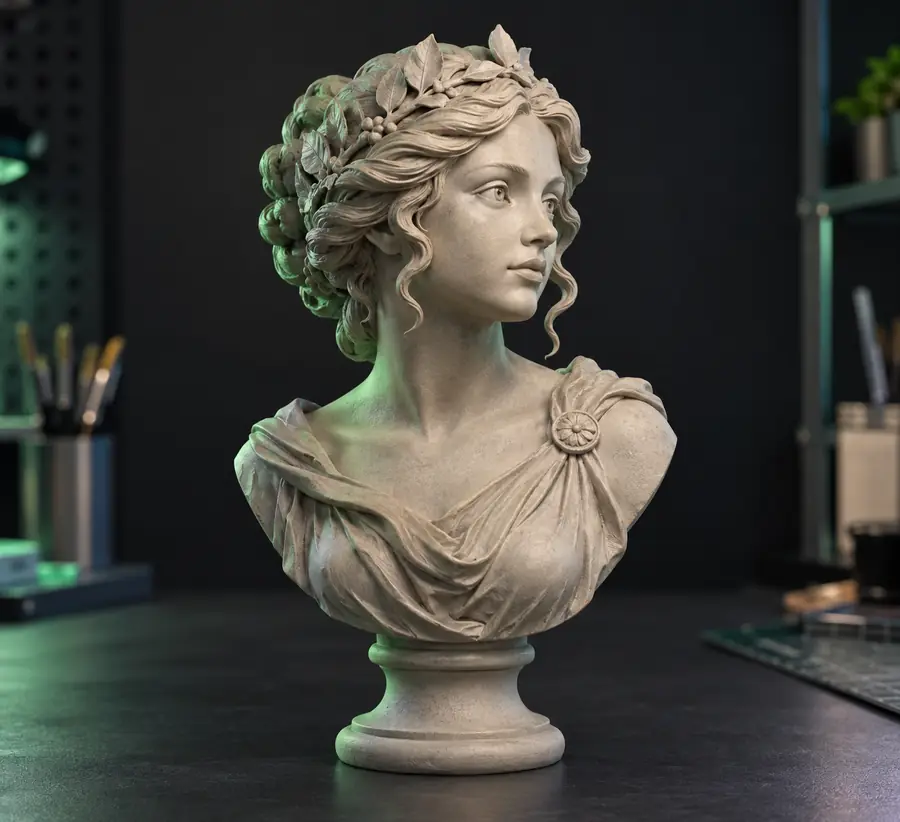
Generated 3D figurines ready for print preparation Model preview
Compare silhouette, base, and fragile details before slicing.

Import checklist

Import settings for a printable model

Use this side-by-side check when moving from a generated mesh into a slicer or modeling application.

Reference image
Printable model

What it contains

Reference image

Pixels, colors, lighting, and visible contours

Printable model

Vertices, faces, volume, and surface geometry

Hidden surfaces

Reference image

Usually unavailable from one view

Printable model

Must be generated or repaired

Scale

Reference image

Often implied by context

Printable model

Must be set in millimeters or another unit

Thin details

Reference image

May look clear in the picture

Printable model

Can fail if too narrow for the nozzle or layer height

Print orientation

Reference image

Not applicable

Printable model

Affects supports, strength, and surface finish

Final validation

Reference image

Check framing and subject clarity

Printable model

Check manifold geometry, layers, walls, and supports

Practical users

Common printing workflows

Different users need different levels of cleanup after an image-based model is created.

Tabletop hobbyist

You want a creature, prop, or character from a single reference image.

Keep the silhouette strong, add a stable base, and verify that thin accessories will survive printing.

image to 3d model ai

Prototype designer

You need a quick physical form study before investing in detailed modeling.

Use the generated mesh to evaluate proportion and posture, then rebuild measured features where accuracy matters.

photo to 3d tutorial step by step

Classroom maker

Students are turning visual references into tangible objects for a project or presentation.

Choose simple subjects, document the review steps, and preview the sliced layers before printing.

convert jpg to 3d image online free

Gift and craft maker

You want a personalized keepsake based on a pet, object, or illustrated reference.

Simplify small features, use a broad base, and inspect the model from every side before export.

image to 3d model ai

Start with a reference

Turn a clear image into a print-ready starting point

Bring your reference into a focused workflow, generate a model, and review the geometry before it reaches the slicer. The best results come from treating the first mesh as a practical draft that can be checked and refined.

Create 3D model
  • Use a clear, well-framed reference
  • Inspect hidden surfaces and thin features
  • Confirm scale and supports in your slicer

Variant FAQ

Image-to-3D printing questions

Yes, an image can provide the visual reference for generating a 3D mesh that you then prepare for printing. The result still needs inspection for scale, hidden geometry, thin features, orientation, and supports before fabrication.

Use a sharp, well-lit image with the subject clearly separated from the background and with important contours visible. Simple shapes and strong silhouettes are usually easier to review and repair than crowded scenes or highly reflective objects.

Not necessarily. Image-based generation can produce open surfaces, weak details, unstable bases, or inaccurate hidden sides, so open the mesh in a modeling tool or slicer and check the layer preview before printing.

A modeling tool such as Blender or MeshLab can help you inspect and repair the mesh, while Cura or PrusaSlicer can prepare it for a printer. The right combination depends on whether you need geometry edits, simple scaling, supports, or detailed print validation.

Create a 3D model
Create a 3D model