Phototo3d

Workflow gallery

See photo to 3d examples online in context

Photo to 3D examples online are most useful when they show a real task, not just a polished render. Explore practical ways to turn a reference image into a model for review, iteration, or further production.

Review output before production
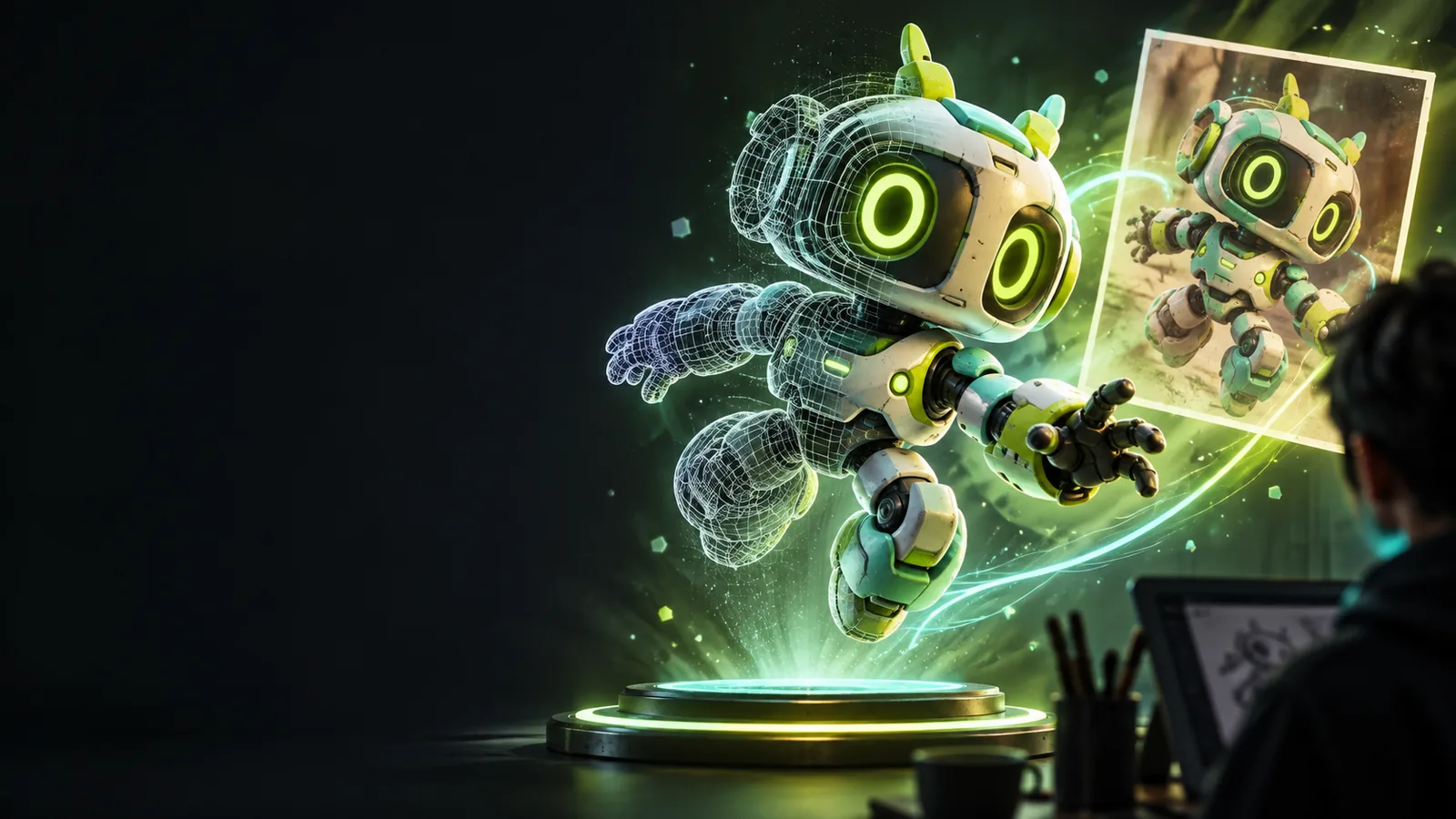
A generated 3D object presented beside its visual reference

The scenario's pain

A single image can communicate shape and style quickly, but it does not provide a reusable object. These photo to 3d examples show where a model can remove repetitive blocking and guesswork.

Product designer

A concept exists as a product photo or mood-board image, but the team needs a rough object to inspect from more than one angle.

Create a reviewable form study before investing in detailed CAD or manual sculpting.

image to 3d model ai


3D artist

A character, prop, or creature reference is clear in one image but slow to rebuild from scratch.

Use the generated model as a starting block for proportions, silhouette, and style exploration.

photo to 3d tutorial step by step

Maker or educator

A visual reference needs to become a tangible teaching aid, display piece, or prototype rather than remain a flat image.

Prepare a model for inspection, refinement, or a later fabrication workflow.

convert image to 3d model for printing

Marketing team

A campaign has a distinctive object or mascot but only a small set of reference images for visual development.

Generate an early 3D asset for scene planning, mockups, and creative direction reviews.

photo to 3d online

Three concrete workflows

The most dependable results come from treating the image as a source of visual guidance, then checking the model against the original purpose.

  1. 1

    Choose a useful reference

    Use a clear image with a readable subject, visible silhouette, and enough contrast to separate the object from its background. State what must be preserved, such as a handle, face, emblem, or overall profile.

  2. 2

    Generate and inspect the model

    Submit the reference and describe the intended result. Review the output from several angles, looking for missing backsides, softened small details, awkward intersections, or proportions that were inferred incorrectly.

  3. 3

    Refine for the next task

    Keep the result as a concept model, revise it in a 3D package, or prepare it for a separate print and production workflow. The right next step depends on the required accuracy and finish.

Related paths for the same workflow

Use these focused guides to compare inputs, production goals, and the amount of refinement your example needs.

Example output: concept model or production asset

A photo to 3d example can look convincing while still needing substantial work before it belongs in a final pipeline. This comparison separates what the image-based route is good at from what a production workflow usually adds.

Image-based concept output
Production-ready asset

Primary purpose

Image-based concept output

Fast visual exploration and proportion studies

Production-ready asset

Reliable use in an established asset pipeline

Input requirement

Image-based concept output

One or more visual references with a readable subject

Production-ready asset

Reference set, measurements, design intent, or source geometry

Hidden surfaces

Image-based concept output

May be inferred from limited visual evidence

Production-ready asset

Built and checked deliberately from all required angles

Small details

Image-based concept output

Fine text, thin parts, and tiny surface features may soften

Production-ready asset

Details are modeled or authored to the required scale

Topology and structure

Image-based concept output

Requires inspection and possible cleanup

Production-ready asset

Designed for deformation, subdivision, simulation, or export needs

Best use

Image-based concept output

Reviews, ideation, blocking, and creative direction

Production-ready asset

Animation, engineering review, manufacturing, or final delivery

Typical next step

Image-based concept output

Refine, retopologize, texture, or use as visual guidance

Production-ready asset

Validate against technical and production requirements

Compliance notes and honest limits

These examples are starting points, not proof that every output is accurate enough for a regulated, engineered, or high-volume process.

A single view cannot prove hidden geometry

The rear, underside, interior, and attachment points may be guessed when they are not visible in the reference.

Workaround

Provide additional views where available, then inspect and correct unseen surfaces manually.

Visual similarity is not dimensional accuracy

A model can resemble the reference while differing in scale, thickness, tolerance, or exact proportions.

Workaround

Use measurements, reference markers, or a dedicated CAD workflow when dimensions matter.

Small lettering may not survive conversion

Labels, logos, thin cables, and delicate edges can be softened, merged, or omitted in a generated result.

Workaround

Rebuild critical details separately and verify them at the intended viewing or fabrication scale.

A generated mesh is not automatically production-ready

Topology, watertightness, materials, rigging, and file preparation may still need specialist review.

Workaround

Run the model through the checks required by your animation, print, engineering, or asset pipeline.

Example output: from reference to model

The before-and-after view is useful for judging silhouette and overall form first. It should not replace a technical inspection of the mesh.

Reference image used for a photo to 3D example Reference image
Generated 3D model derived from an image reference Generated model
Judge the silhouette before the details.

Turn a reference into your next 3D study

Use these photo to 3d examples as a practical starting point: describe the object, review the generated form, and decide whether it needs artistic refinement or technical reconstruction. The goal is a useful next asset, not an unsupported promise of final production accuracy.

Generate a 3D model
  • Start from a clear visual reference
  • Review hidden surfaces and small details
  • Refine the output for your intended workflow

Scenario FAQ

Answers to common questions about using photo to 3d examples online for real projects.

Useful examples connect an image to a specific task, such as product blocking, character exploration, prototype review, or print preparation. They show both the visible result and the decisions needed before the model is used further.

You can use an image-based model as a starting point for a printable object, but it may need cleanup before slicing. Check scale, wall thickness, manifold geometry, overhangs, and small features in a dedicated preparation workflow.

Not necessarily. A limited reference image leaves hidden surfaces and depth open to interpretation, so the generated model may be strongest from the view shown. Additional references and manual inspection improve confidence.

They can support ideation, blocking, mockups, and early reviews, but suitability depends on the required accuracy and the asset's role. Production use should include checks for geometry, rights, dimensions, materials, and pipeline compatibility.

Choose a sharp image with a clear subject, strong silhouette, visible edges, and limited background confusion. Multiple angles, consistent lighting, and a description of the details that matter most can make the result easier to evaluate.

Create a 3D model
Create a 3D model