Product designer
You have one clean JPG of a small object and need a rough spatial reference.
The model gives you a faster starting point for proportions, blocking, and review.
image to 3d model aiJPG conversion guide
Convert jpg to 3d image online free by starting with a clear subject photo, sending it through the model workflow, and checking the resulting geometry before reuse.
A JPG stores a flat view; a 3D model describes surfaces and volume. These related pages explain nearby image-to-model workflows.
The conversion can infer shape, but it cannot recover every detail that was never visible in the source image.
You have one clean JPG of a small object and need a rough spatial reference.
The model gives you a faster starting point for proportions, blocking, and review.
image to 3d model aiYou want to inspect an object before deciding whether it is suitable for a printable workflow.
The generated form helps expose missing sides and areas that need manual repair.
convert image to 3d model for printingYou need a concept asset from a reference image without rebuilding the entire shape by hand.
A first-pass model can accelerate exploration while keeping the original JPG as visual guidance.
photo to 3d examples onlineYou are testing how image evidence affects the shape of a generated asset.
Comparing the source and result makes the strengths and limits of the workflow easier to understand.
what is photo to 3dKeep the input simple and evaluate the output in stages rather than treating the first generated shape as a finished asset.
Choose a sharp image with one clear subject, useful contrast, and as little background clutter as possible.
Use the conversion console to pass the image and its intended object description into the model workflow.
Inspect the silhouette, visible surfaces, proportions, and obvious gaps before deciding how to use the result.
Use this side-by-side check to separate what the JPG shows from what the generated model must represent.
Basic structure
Source JPG
A flat raster view from one camera angle
Generated 3D model
A spatial form with depth and surfaces
Hidden sides
Source JPG
Usually unavailable or implied
Generated 3D model
Estimated from visible evidence
Texture detail
Source JPG
Captured as pixels in the image
Generated 3D model
May be simplified, projected, or absent
Silhouette
Source JPG
Directly visible in the frame
Generated 3D model
Should remain recognizable from multiple angles
Scale
Source JPG
No dependable real-world size by itself
Generated 3D model
Still needs a known reference or later measurement
Editing
Source JPG
Easy to crop and retouch as pixels
Generated 3D model
Requires mesh or 3D editing tools
These are the three formats of evidence to compare before you keep, edit, print, or present the generated model.
A useful review asks whether the generated form preserves the subject's recognizable structure, not whether it copies every pixel.
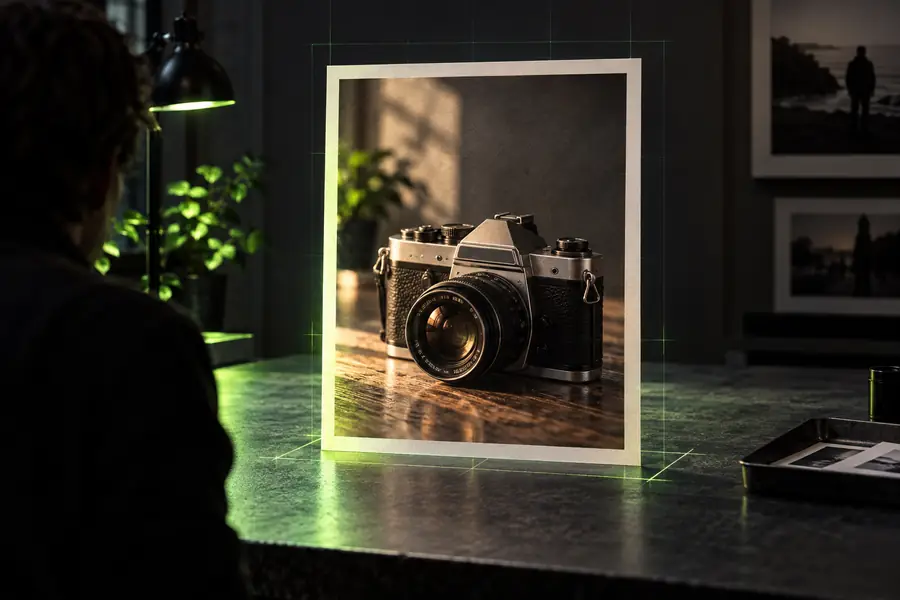 Before: JPG reference
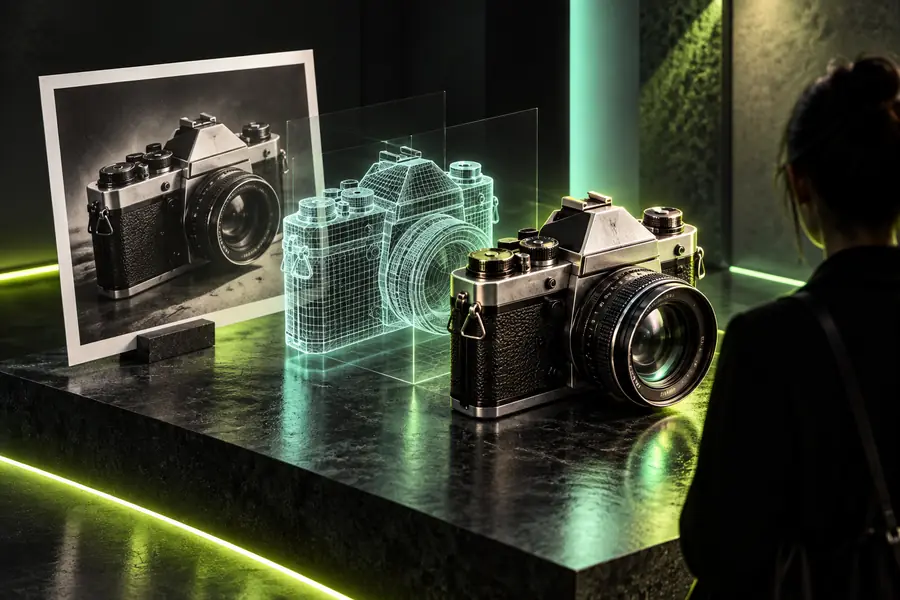 After: 3D model
A single image is useful evidence, but it is not a complete scan. Plan for uncertainty where the source does not show enough information.
The back, underside, and occluded parts may be estimated rather than faithfully reconstructed.
Workaround
Use multiple reference views or manually correct the unseen areas.
Small grooves, thin edges, and subtle surface changes can disappear in the generated form.
Workaround
Use a sharper, better-lit JPG and inspect the result at close range.
A photo alone usually does not establish real-world dimensions for the model.
Workaround
Add a known-size reference or measure and rescale the output afterward.
Watertightness, wall thickness, supports, and material behavior still require separate checks.
Workaround
Run the model through an appropriate repair and slicing workflow before printing.
A clean source image gives the conversion workflow better evidence, while a careful review keeps expectations realistic. Send a focused JPG, inspect the generated shape, and use the result as a considered starting point rather than an unquestioned final asset.
Convert my imageA JPG can be used as the image input for an online 3D generation workflow. Whether a particular route is free, limited, or requires a connected product account depends on the destination tool, so review the handoff and output before relying on it.
Use a sharp image with one prominent subject, even lighting, and a background that does not merge with the object. A clear silhouette and visible structural details give the workflow stronger evidence than a crowded or heavily blurred photo.
Hidden sides are inferred from the visible image rather than directly captured. The result may be plausible without being exact, so compare the model from several angles and correct unseen areas when accuracy matters.
No. Conversion creates a model representation, but printing usually requires checks for watertight geometry, wall thickness, scale, orientation, and supports. Treat the generated result as a starting point for print preparation.
Yes, a product photo can be a useful starting reference when the object is centered and clearly separated from its background. Reflective surfaces, transparent parts, and fine details may still need extra review or manual refinement.